RESOURCES
Help Center
Real screenshots and short, clear steps for everything in IntelliCEO — from your first sign-up to connecting your point of sale.
Sign Up
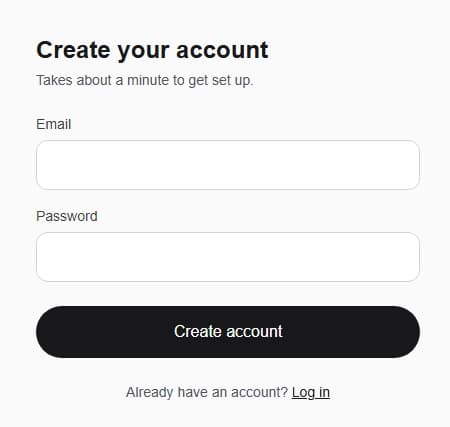
Create your account.
- 1Go to Sign Up and enter your email and a password.
- 2Tell IntelliCEO about your business — name, a quick overview, what you sell, and what matters most right now.
- 3Choose whether you use Square, Clover, or another/no POS system.
- 4Enter your starting numbers — cash on hand, monthly burn, and this month's revenue.
- 5Pick a plan and start your 7-day free trial.
Sign Up
Dashboard
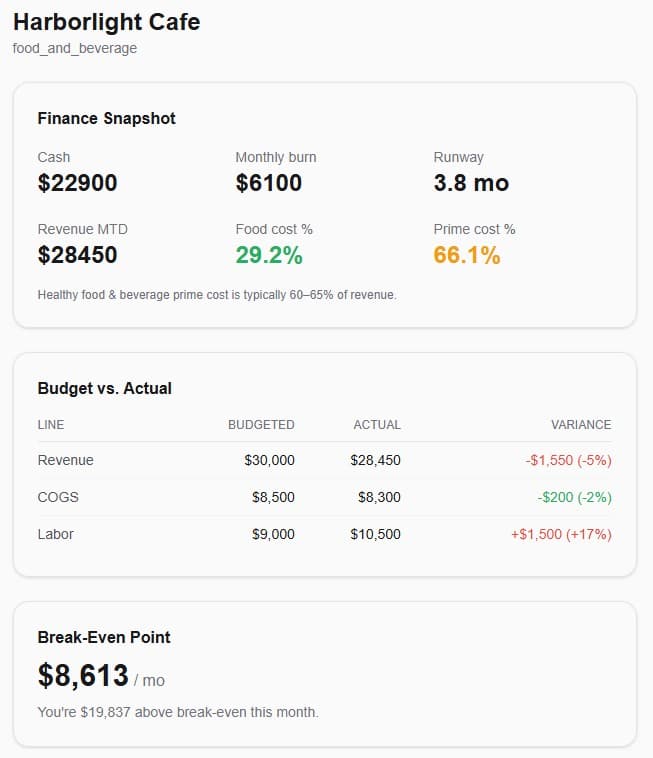
Your business at a glance.
- 1See your finance snapshot — cash, burn, runway, revenue, food cost, and prime cost — the moment you log in.
- 2Check Budget vs. Actual to see where you're over or under plan.
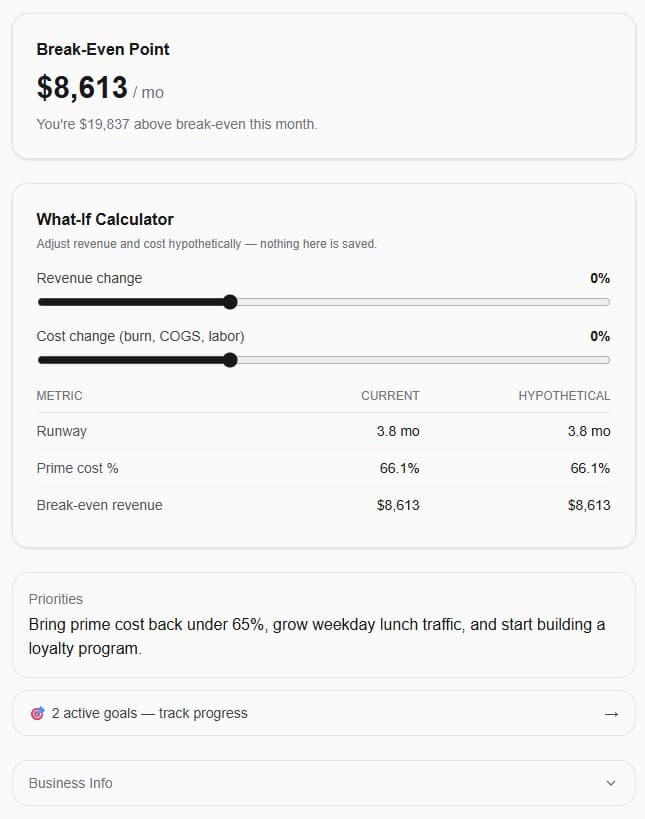
- 3Review your break-even point and how far above or below it you are this month.
- 4Try the What-If Calculator to see how a change in revenue or costs would move your numbers, without saving anything.
Dashboard
CEO Brief
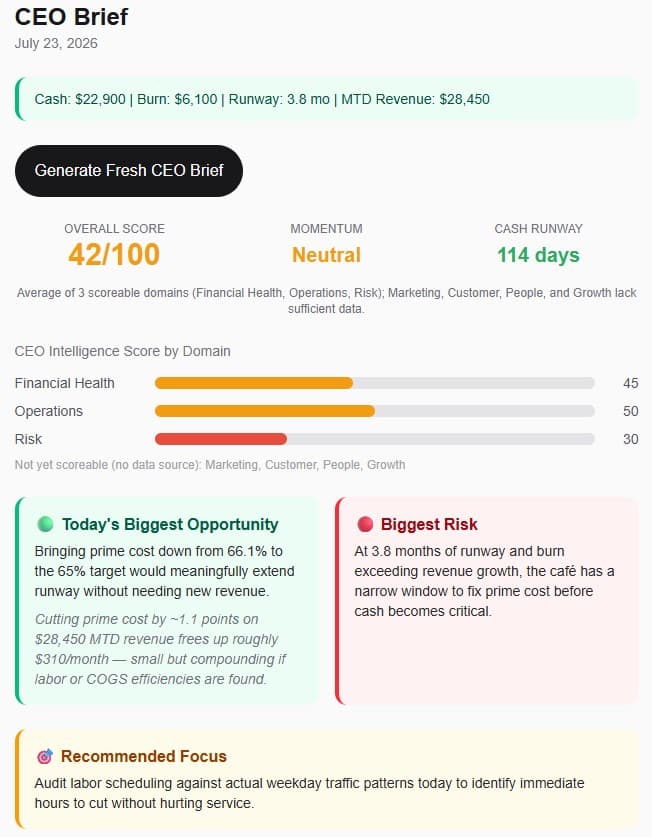
Get a full read on the business, on demand.
- 1Open CEO Brief and click Generate Fresh CEO Brief.
- 2Review your Overall Score, momentum, and cash runway.
- 3See today's biggest opportunity and biggest risk, grounded in your real numbers.
- 4Check the Recommended Focus for one clear action to take today.
CEO Brief
Vital Signs
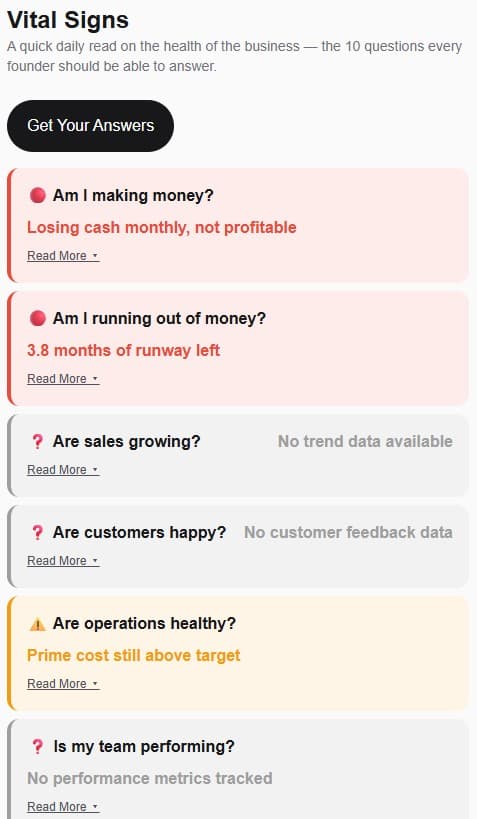
The 10 questions every founder should be able to answer.
- 1Open Vital Signs and click Get Your Answers.
- 2Each question is flagged good, caution, or concern based on your real data.
- 3Click Read More under any question for a fuller explanation.
- 4Questions without enough data yet are marked honestly instead of guessed.
Vital Signs
Decisions Log
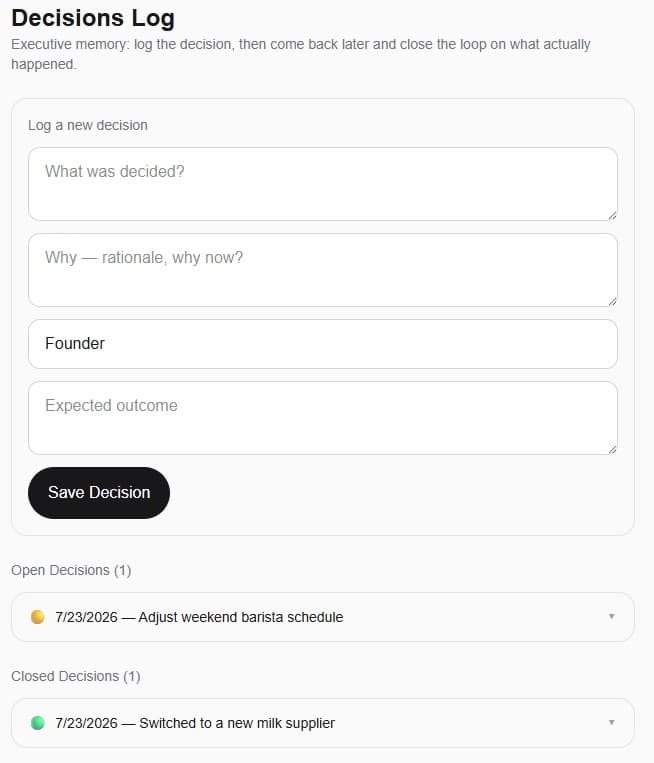
Keep a record of what you decided, and why.
- 1Log a new decision — what was decided, why, and who made the call.
- 2Come back later and close the loop by recording what actually happened.
- 3Open and closed decisions both stay on record, so you can see your own track record over time.
Decisions Log
Goals
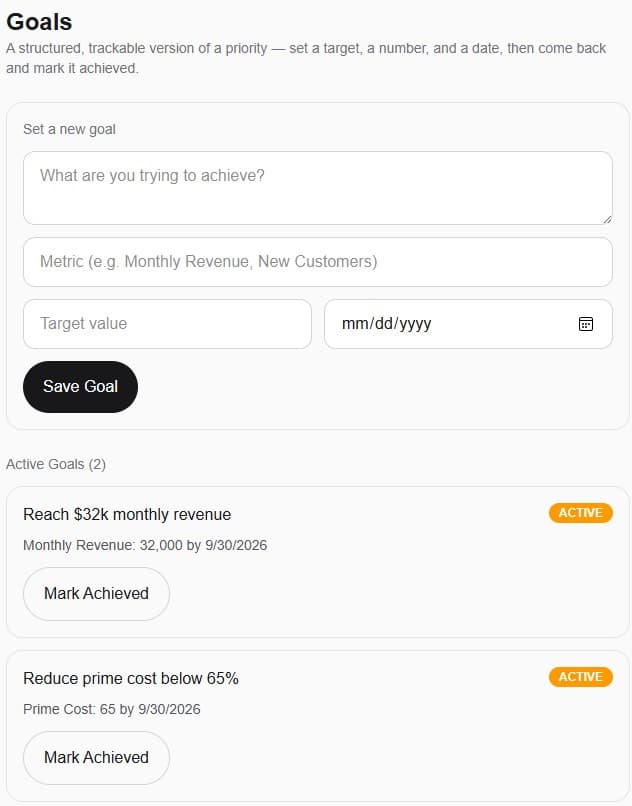
Set a target, and track it.
- 1Set a new goal — what you're trying to achieve, the metric, a target value, and a date.
- 2Track it as Active until you hit it.
- 3Click Mark Achieved once you've reached it.
Goals
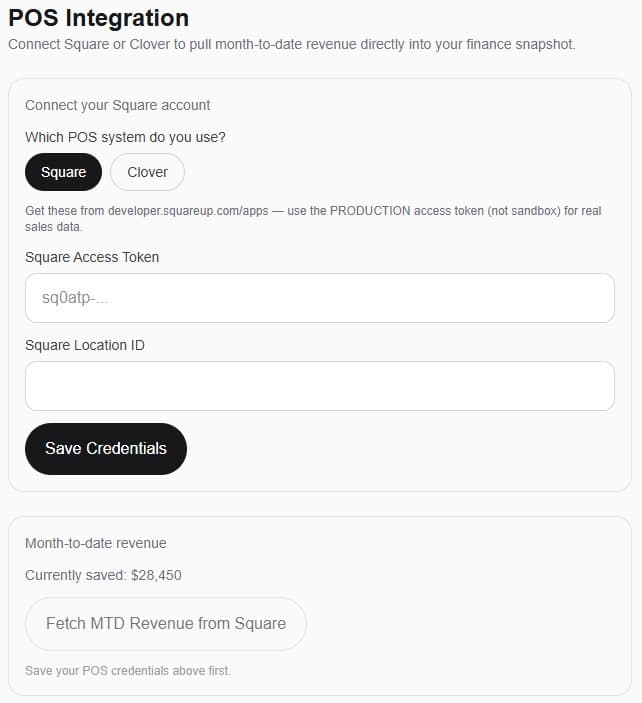
POS Integration
Connect Square or Clover.
- 1Open POS Integration and choose Square or Clover.
- 2Enter your production access token and location/merchant ID from your POS provider's developer dashboard.
- 3Click Save Credentials.
- 4Click Fetch MTD Revenue to pull your real month-to-date revenue directly into your finance snapshot.
POS Integration
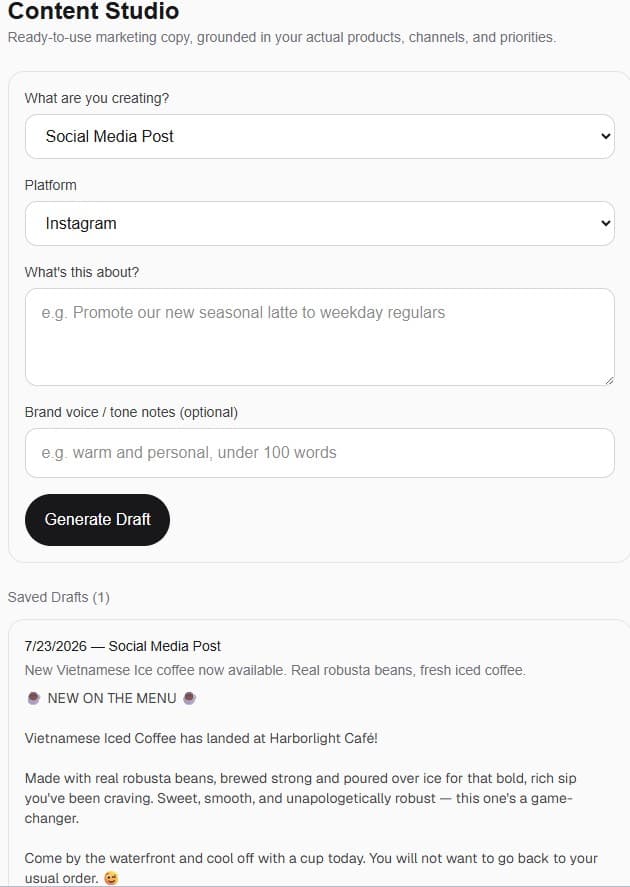
Content Studio
Real marketing content in seconds.
- 1Choose what you're creating — social post, email, announcement, and more.
- 2Tell IntelliCEO what it's about, and add tone notes if you want a specific voice.
- 3Click Generate Draft.
- 4Save any draft you like to your Content Library.
Content Studio
Ask / Chat
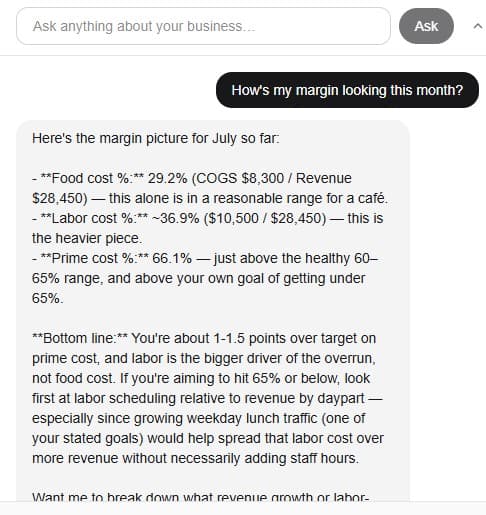
Ask anything about your business.
- 1Use the Ask bar at the top of any page.
- 2Ask a specific question — IntelliCEO answers using your real numbers and everything you've discussed before.
- 3Keep the conversation going; IntelliCEO remembers the context.
Ask / Chat